

Backup and Data Recovery
Learn how to back up your data in Dialcash and how to restore it correctly to avoid losing your information.
Why is Data Backup Important?
Dialcash stores all your information locally on your device. This means you have complete control of your data… but also the responsibility.
If you:
- Uninstall the app
- Change phones
- Reset the system
- Or lose the device
👉 and you didn’t make a backup, you will lose all your information.
That’s why backup isn’t optional: it’s prevention.
What a Backup in Dialcash Includes
A backup saves:
- Accounts
- Transactions
- Categories
- Internal app configuration
Everything necessary to restore your state exactly as it was.
Before Creating a Backup
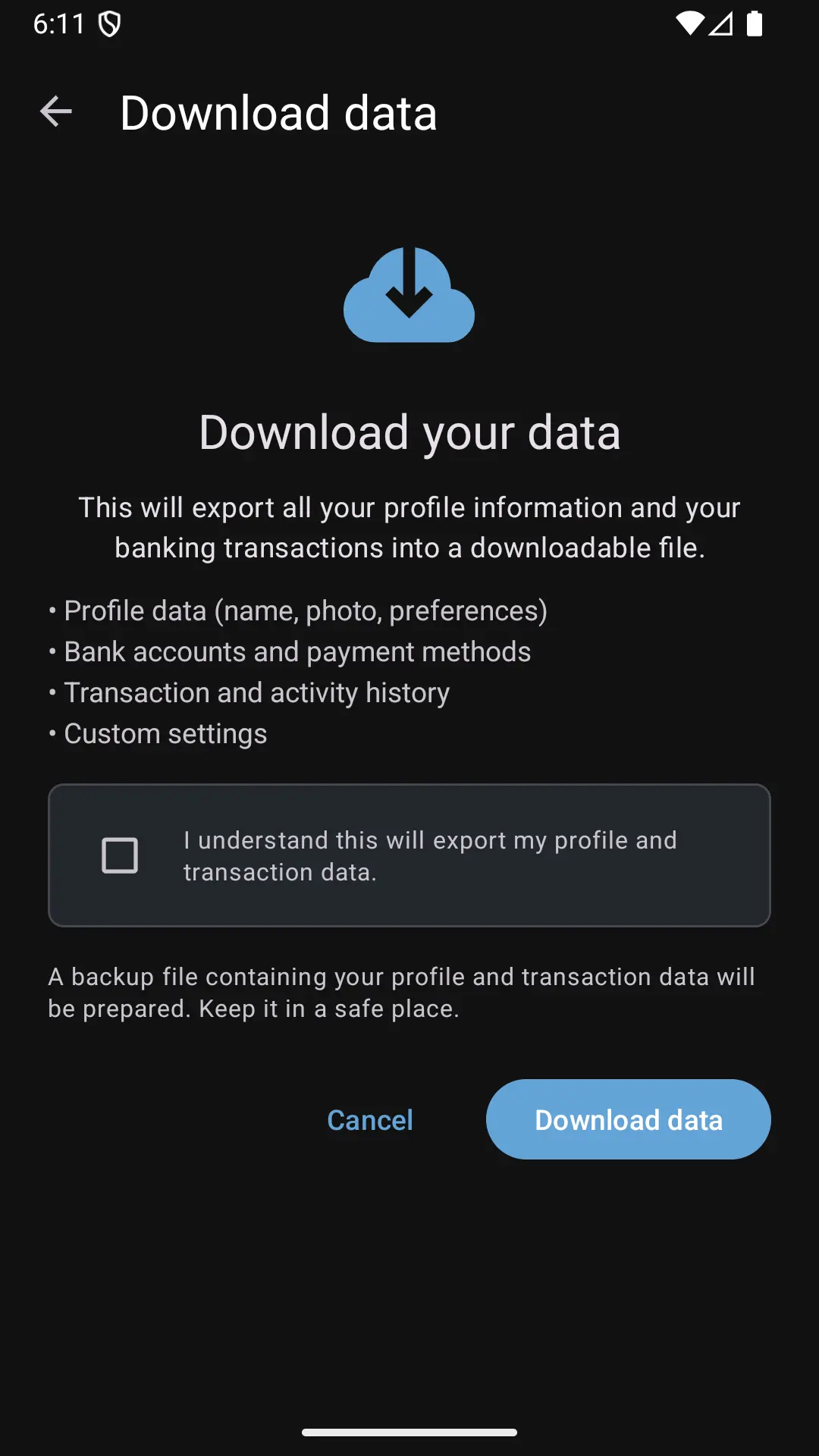
Before allowing backup creation, Dialcash will ask you to confirm some important conditions.
✔️ Mandatory Confirmations
You must accept one or more checkboxes indicating that you understand:
- Backup is your responsibility
- Dialcash doesn’t store copies in the cloud
- Without backup, data cannot be recovered
These confirmations exist to prevent accidental errors.
Creating a Backup
When starting the backup:
📁 Destination Selection
You can choose where to save the backup file, for example:
- Internal storage
- Specific folder
- External memory
It’s important to choose a place that’s:
- Easy to remember
- Accessible in the future
💾 Saving the Destination (Important)
Dialcash remembers the selected destination to:
- Facilitate future backups
- Allow faster restorations
Even so, it’s always recommended to know where your backup is saved.
When to Make a Backup
It’s recommended to create a backup:
- Before changing phones
- Before uninstalling the app
- Periodically if you use the app daily
A recent backup prevents headaches later.
Restoring a Backup
Restoration allows you to recover your data from an existing backup.
When restoring:
- Dialcash will load the information from the file
- The app’s state will change to that of the backup
- Current data will be replaced
Confirmations Before Restoring
Before completing the restoration, Dialcash will ask you to confirm that:
- You understand current data will be replaced
- The selected file is correct
This prevents accidental restorations.
After a Restoration
Once the data is restored:
- You can continue using the app normally
- The backup is no longer needed for that restoration
👉 It’s recommended to disconnect or unlink that backup if it has fulfilled its purpose, to avoid future confusion.
Common Use Cases
🔁 Phone Change
- Create backup on old phone
- Copy file to new device
- Restore from Dialcash
🧹 App Reinstallation
- Create backup
- Uninstall Dialcash
- Install again
- Restore data
⚠️ Prevention
Create periodic backups for security, even if you don’t plan to change devices.
Common Mistakes
❌ Not backing up before uninstalling
Result: total data loss.
❌ Not remembering where the file was saved
Result: useless backup.
❌ Restoring the wrong file
Result: outdated information.
Best Practices
- Make backups regularly
- Save the file in a secure place
- Don’t depend on a single backup
- Verify the file exists after creating it
A backup that doesn’t exist is the same as having no backup.
Summary
- Dialcash stores your data locally
- Backup is your only way to protect it
- Restoring replaces current data
- Making backups is prevention, not exaggeration
Taking care of your data is part of financial control.
Visual Guide
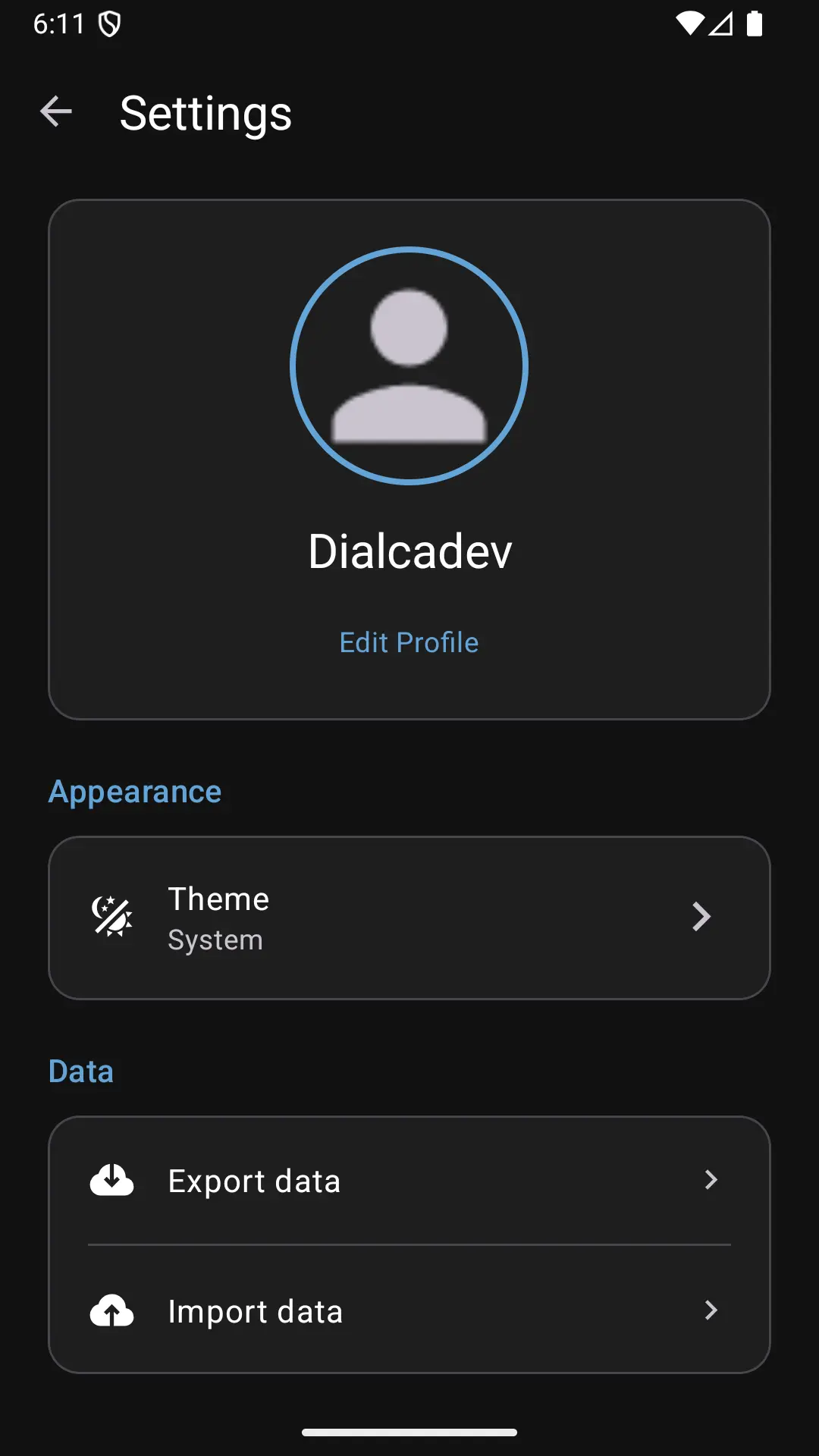
Viewing the settings screen
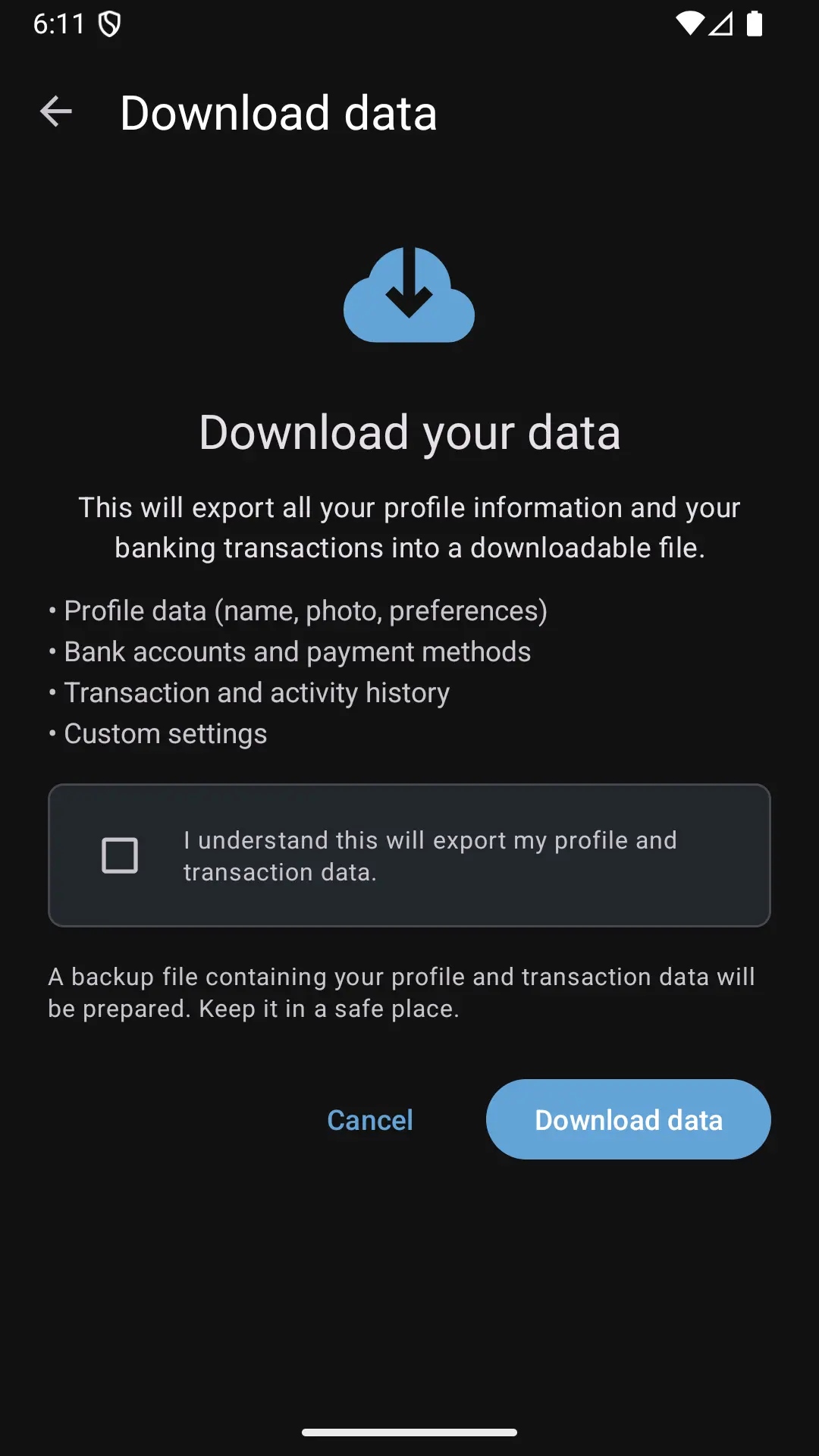
Exporting data to a backup file
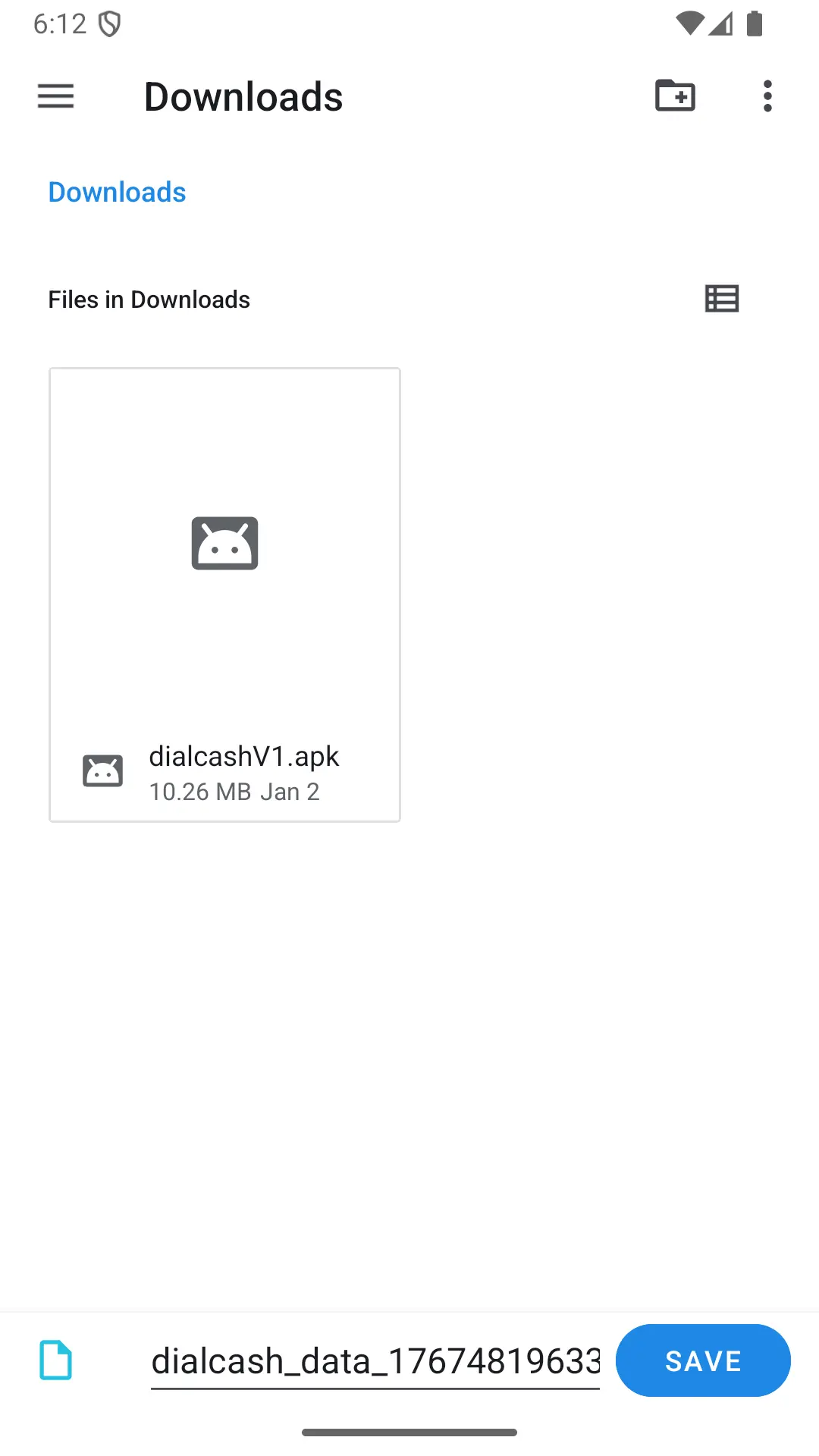
Saving data to a backup file
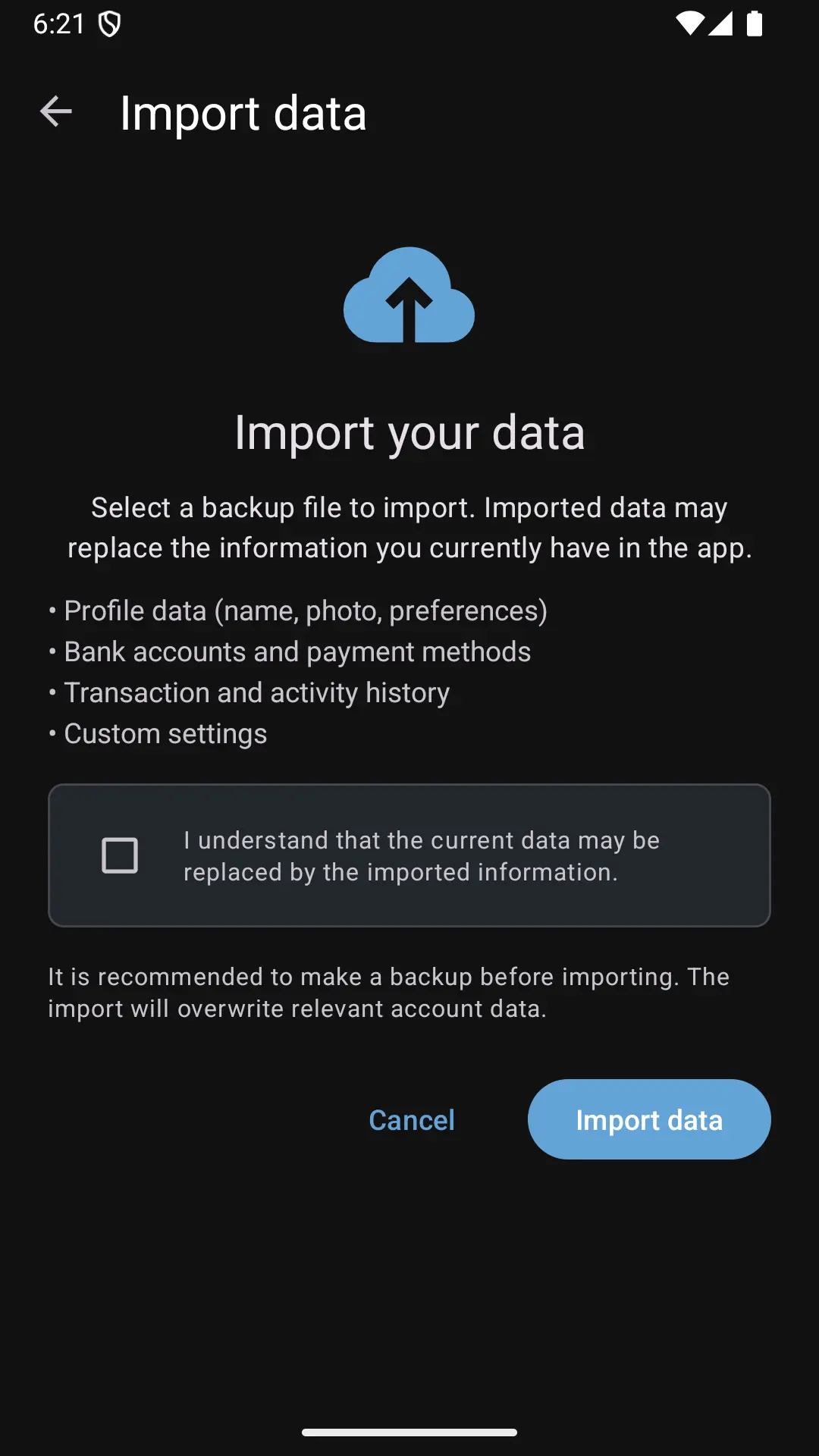
Importing data from a backup file
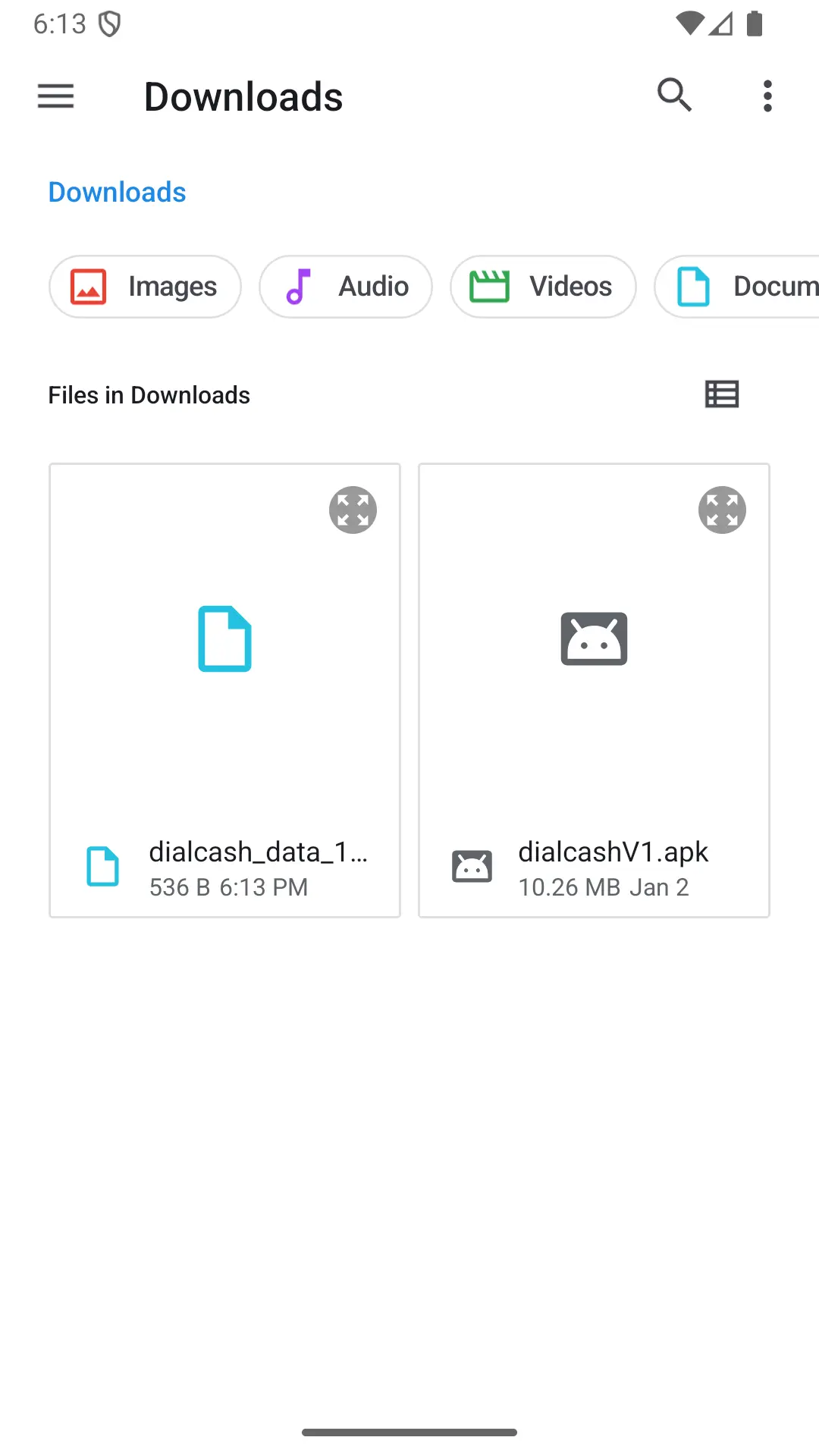
Restoring data from a backup file